Appendix: JAAS Configuration
For the authentication and authorization of users, IKAN ALM uses the Java Authentication and Authorization Service (JAAS) (see http://download.oracle.com/javase/6/docs/technotes/guides/security/jaas/JAASRefGuide.html).
The IKAN ALM Server installation automatically preconfigures JAAS, so this appendix is only for troubleshooting, or if you want to adapt authentication, e.g., for using Windows domain authentication.
JAAS authentication is performed in a pluggable fashion. This permits applications to remain independent from underlying authentication technologies. New or updated authentication technologies can be plugged into IKAN ALM without requiring modifications to the application itself.
IKAN ALM Server JAAS configuration
The IKAN ALM Server installation adapts the java security properties file, named “java.security”, which is located in the “JVM_HOME/jre/lib/security” directory of the J2SE SDK. Note that Tomcat must be started with the Java Virtual Machine in this JVM_HOME, otherwise you will have authentication errors.
The location of the login configuration file is set statically by specifying the URL in the login.config.url.n property (in the “Default login configuration file” paragraph), e.g.,
#
# Default login configuration file
#
#login.config.url.1=file:${user.home}/.java.login.config
login.config.url.1=file:/opt/alm/system/security/jaas.config
with “/opt/alm/” the chosen ALM_HOME.
If multiple configuration files are specified (if n >= 2), they will be read and combined into one single configuration :
#
# Default login configuration file
#
#login.config.url.1=file:${user.home}/.java.login.config
login.config.url.1=file:c:/Documents and Settings/Administrator/.java.login.config
login.config.url.2=file:c:/alm/system/security/jaas.config
JVM Option or user.home JAAS Configuration
There are two other ways to set up the JAAS configuration:
The first uses a system property which is set from the commandline: -Djava.security.auth.login.config option.
When running tomcat as a shell, this can be done by modifying the shell command and setting an additional JVM option (e.g., in the TOMCAT_HOME/bin/Catalina.sh file or Catalina.bat):
export JAVA_OPTS=-Djava.security.auth.login.config=/opt/alm/system/security/jaas.config
The second option is to use the default configuration file which is loaded from the user’s home directory :
file:${user.home}/.java.login.config
JAAS Implementation: Flat File Security
The IKAN ALM Server uses this simple JAAS implementation, where user groups and users are configured in a flat file. In the JAAS configuration file, this is specified as follows (when ALM_HOME=`"/opt/alm`"):
/**
* ALM flat file security configuration
* Attention : the passwords in the passwd.config file must
be stored in MD5 encryption format **/
**/
ALM
{
  com.tagish.auth.FileLogin required pwdFile=”/opt/alm/system/security/passwd.config";
};
Flat File Security: Contents
The contents of the passwd.config file when using flat file security is fairly easy and self-explanatory:
userid:encrypted password:groupname:groupname:groupname
user:ee11cbb19052e40b07aac0ca060c23ee:ALM User
project:46f86faa6bbf9ac94a7e459509a20ed0:ALM User:ALM Project
global:9c70933aff6b2a6d08c687a6cbb6b765:ALM User:ALM Administrator
The encrypted password is in MD5 encryption format. There are numerous free downloadable tools that can generate a MD5 checksum for a given string . There is even a JavaScript implementation that you can use online to calculate checksums at: http://pajhome.org.uk/crypt/md5/index.html
For example, to add a user with User ID “testuser” and password “testuser” who belongs to the “ALM User” and “ALM Project” User Groups, do the following :
-
Add the following entry to the passwd.config file:
testuser:5d9c68c6c50ed3d02a2fcf54f63993b6:ALM User:ALM Project -
Stop and restart Apache Tomcat.
-
Log on to IKAN ALM, using User ID “testuser” and Password “testuser”.
Appendix: DB2 Configuration
When using DB2 as the IKAN ALM database, please make sure that the page size of the table space and its associated buffer pool is not less than 8K. Otherwise, when creating a new database in DB2, the default page size is 4K and this can cause SQL errors while running the database initialization script.
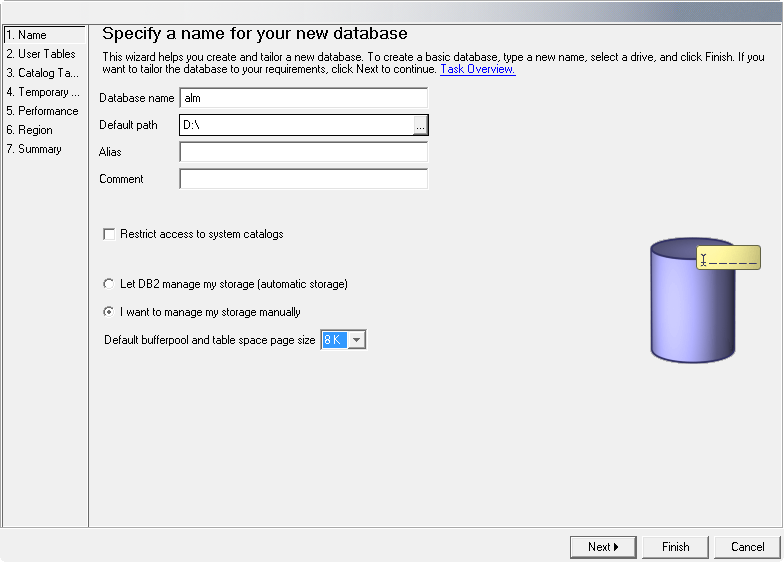
The page size of a table space in DB2 is determined by the associated buffer pool, but you cannot change the page size of a buffer pool. So, if you want to use an existing DB2 database with the page size already set to 4K, a possible workaround would be to create a new buffer pool with a page size of 8K, and, next, to create a new table space (e.g., USERSPACE2) with a page size of 8K and to associate it with the new buffer pool.
Furthermore, you will also need to create a new system temporary tablespace (e.g., TEMPSPACE2) and associate it with a buffer pool that has its page size set to at least 8K.